


Online Payment Help
How to Set up Preauthorized Payments of a Recurring Invoice
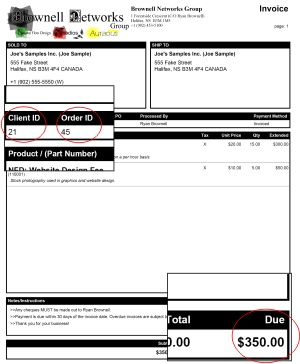
In order set up preauthorized payments of a recurring invoice you must have any invoice related to the recurrence with you.
You first need to find your client number. It is labeled Client ID and is located on the on the row just below the billing address.
You then need to find your invoice number. It is labeled Order ID and is located immediately next to the Client ID.
You then need to find the amount the invoice is for. This is located in the lower right hand corner of the invoice. In the event that your account has late charges please add these to the total amount due on the invoice.
And finally you then need to figure out the frequency of the billing cycle. You will see line items with either monthly or yearly in brackets after the description, pay attention to the Qty section of those line items to determine actual recurring patterns. For example Monthly with the Qty set to 3 is an invoice that occurs on a quarterly basis.
If you see a mix of items that say both Monthly, Yearly or don't have a specified timeframe contact us first before using this form. If at any time you are having any problems please do not hesitate to contact us.
Take this information and then fill out the form of the online bill payment page and click on “Get Started.”
You will be then redirected to a secure webpage located at https://www.paypal.com. Take note of the “s” in the http:// that “s” stands for security so you can rest assured that your payment and transaction is secure. In the event that you get a warning from your browser stating that there are insecure items on the page, it is ok to proceed, as that item is just an image.
Please note that there is a 2.987% + $0.30 processing fee per payment transaction.
Canceling Preauthorized Payments
To cancel your preauthorized payment you must go to PayPal and log into your PayPal account and manage your preauthorized payments.

© 2008-2011 Ryan Brownell